> ## Documentation Index
> Fetch the complete documentation index at: https://docs.wikio.ai/llms.txt
> Use this file to discover all available pages before exploring further.
# Comments & collaboration
> Leave frame-accurate feedback on videos, reply to teammates, and keep review conversations organized in Wikio.
Comments in Wikio are tied directly to video timecodes, so feedback is always precise. Reviewers can point to the exact frame they're referring to, and editors can jump straight to the moment that needs attention.
 ## Leave a comment
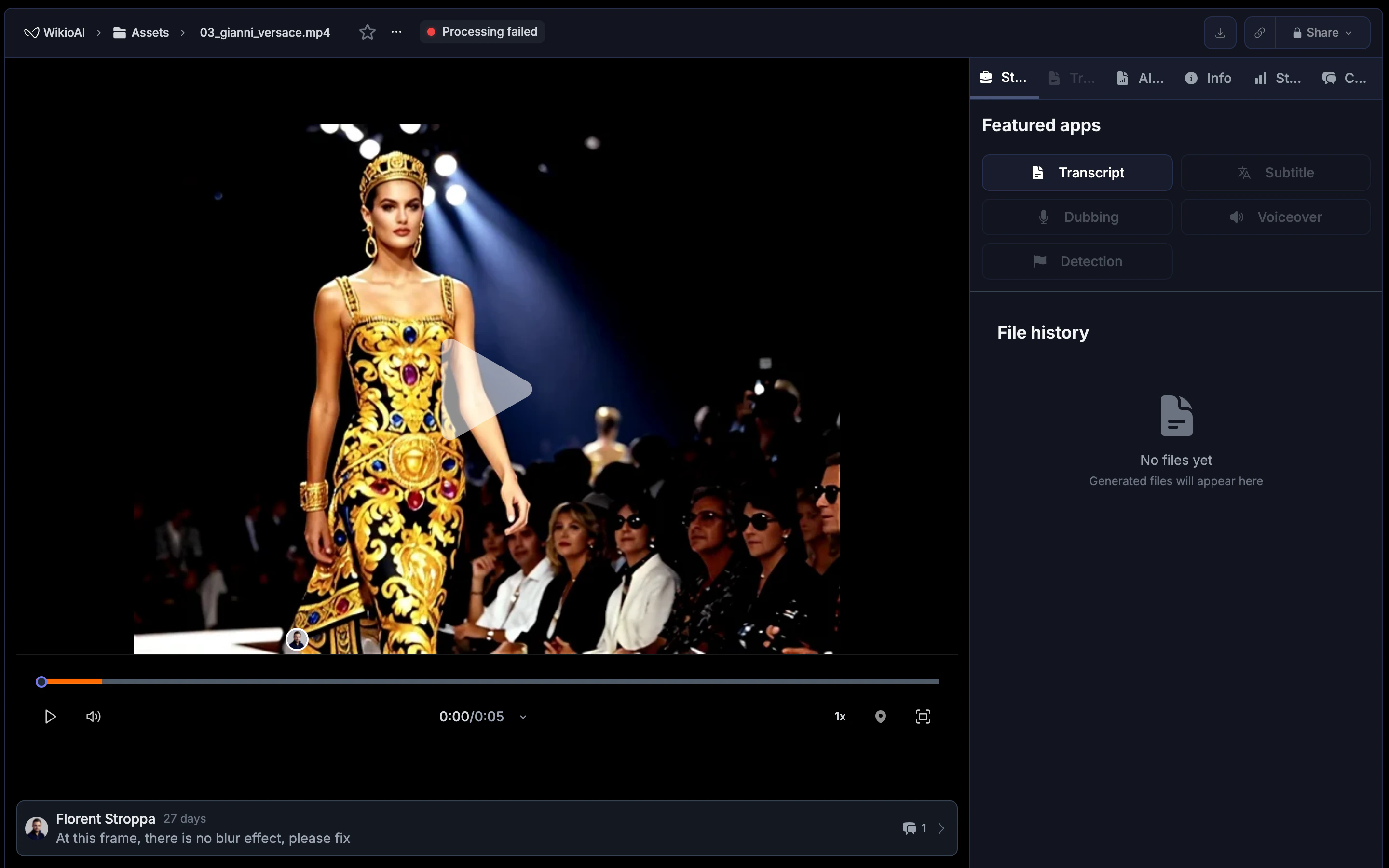
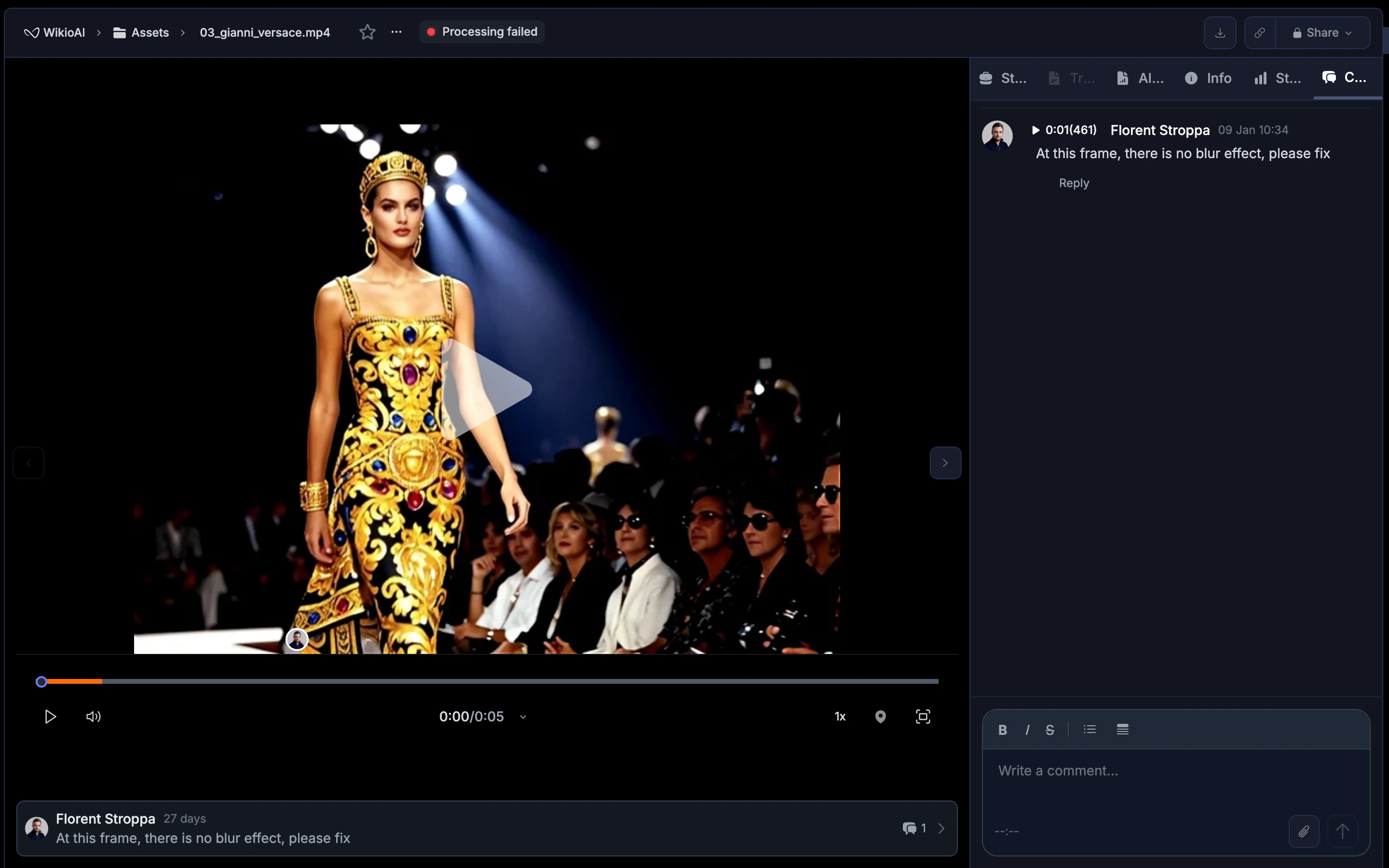
Navigate to any asset and click the **Comments** tab in the right panel.
Scrub the video to the frame you want to comment on. The current timecode is automatically attached to your comment.
Type your message in the comment box at the bottom of the panel. Use the formatting toolbar for **bold**, *italic*, or ~~strikethrough~~ text.
Click **Save** to post the comment. It appears in the panel and as a marker on the video timeline.
## Leave a comment
Navigate to any asset and click the **Comments** tab in the right panel.
Scrub the video to the frame you want to comment on. The current timecode is automatically attached to your comment.
Type your message in the comment box at the bottom of the panel. Use the formatting toolbar for **bold**, *italic*, or ~~strikethrough~~ text.
Click **Save** to post the comment. It appears in the panel and as a marker on the video timeline.
 ## Frame-accurate commenting
Press Shift + C while watching a video to open the comment input at the exact current frame. This is the fastest way to annotate during playback review.
Each comment stores:
* The **timecode** where it was created (e.g. 0:01/45)
* The **author** and date
* The **comment text** with any formatting or attachments
Click any comment in the panel to jump the video to that timecode instantly.
## Formatting and attachments
The comment editor supports:
| Feature | How to use |
| -------------------- | ----------------------------------------------------- |
| **Bold** | Click **B** or wrap text in `**` |
| **Italic** | Click **I** or wrap text in `*` |
| **Strikethrough** | Click **S** or wrap text in `~~` |
| **Image attachment** | Click the attachment icon to upload a reference image |
Attachments are useful for sharing visual references, mockups, or comparison frames alongside your feedback.
## Reply to comments
Click **Reply** under any comment to start a threaded conversation. Replies stay grouped under the original comment, keeping discussions organized even when multiple people are reviewing the same asset.
## Edit and delete comments
* **Edit**: Click **Edit** on your own comment to update its text.
* **Delete**: Click **Delete** to remove a comment. A confirmation prompt appears before deletion.
You can only edit or delete your own comments. Workspace Admins can delete any comment.
## Timeline markers
Comments appear as markers on the video timeline, giving editors a visual overview of where feedback exists. This makes it easy to scrub through a video and address each note in order without switching between the player and the comment list.
## Comments in the player bar
The most recent comment also appears at the bottom of the player view, showing the author and message. This gives quick context without opening the full Comments panel.
## Best practices
* **Be specific**: Reference what you see in the frame rather than giving vague feedback. The timecode anchoring helps, but clear descriptions save back-and-forth.
* **Use one comment per issue**: Separate notes into individual comments so each can be addressed and resolved independently.
* **Attach references**: When requesting a visual change, attach an image showing what you expect.
* **Review in order**: Work through the timeline from start to finish so editors can address feedback sequentially.
* **Use replies for discussion**: Keep follow-up questions in reply threads rather than creating new top-level comments on the same frame.
## Frame-accurate commenting
Press Shift + C while watching a video to open the comment input at the exact current frame. This is the fastest way to annotate during playback review.
Each comment stores:
* The **timecode** where it was created (e.g. 0:01/45)
* The **author** and date
* The **comment text** with any formatting or attachments
Click any comment in the panel to jump the video to that timecode instantly.
## Formatting and attachments
The comment editor supports:
| Feature | How to use |
| -------------------- | ----------------------------------------------------- |
| **Bold** | Click **B** or wrap text in `**` |
| **Italic** | Click **I** or wrap text in `*` |
| **Strikethrough** | Click **S** or wrap text in `~~` |
| **Image attachment** | Click the attachment icon to upload a reference image |
Attachments are useful for sharing visual references, mockups, or comparison frames alongside your feedback.
## Reply to comments
Click **Reply** under any comment to start a threaded conversation. Replies stay grouped under the original comment, keeping discussions organized even when multiple people are reviewing the same asset.
## Edit and delete comments
* **Edit**: Click **Edit** on your own comment to update its text.
* **Delete**: Click **Delete** to remove a comment. A confirmation prompt appears before deletion.
You can only edit or delete your own comments. Workspace Admins can delete any comment.
## Timeline markers
Comments appear as markers on the video timeline, giving editors a visual overview of where feedback exists. This makes it easy to scrub through a video and address each note in order without switching between the player and the comment list.
## Comments in the player bar
The most recent comment also appears at the bottom of the player view, showing the author and message. This gives quick context without opening the full Comments panel.
## Best practices
* **Be specific**: Reference what you see in the frame rather than giving vague feedback. The timecode anchoring helps, but clear descriptions save back-and-forth.
* **Use one comment per issue**: Separate notes into individual comments so each can be addressed and resolved independently.
* **Attach references**: When requesting a visual change, attach an image showing what you expect.
* **Review in order**: Work through the timeline from start to finish so editors can address feedback sequentially.
* **Use replies for discussion**: Keep follow-up questions in reply threads rather than creating new top-level comments on the same frame.