> ## Documentation Index
> Fetch the complete documentation index at: https://docs.wikio.ai/llms.txt
> Use this file to discover all available pages before exploring further.
# Dubbing
> Use Wikio to create dubbed audio tracks for videos in different languages, ensuring smooth playback and sync.
Dubbing replaces the original spoken audio with a translated voice track. Wikio uses AI to generate natural-sounding dubs that stay in sync with the video, letting you reach audiences in new languages without manual voiceover recording.
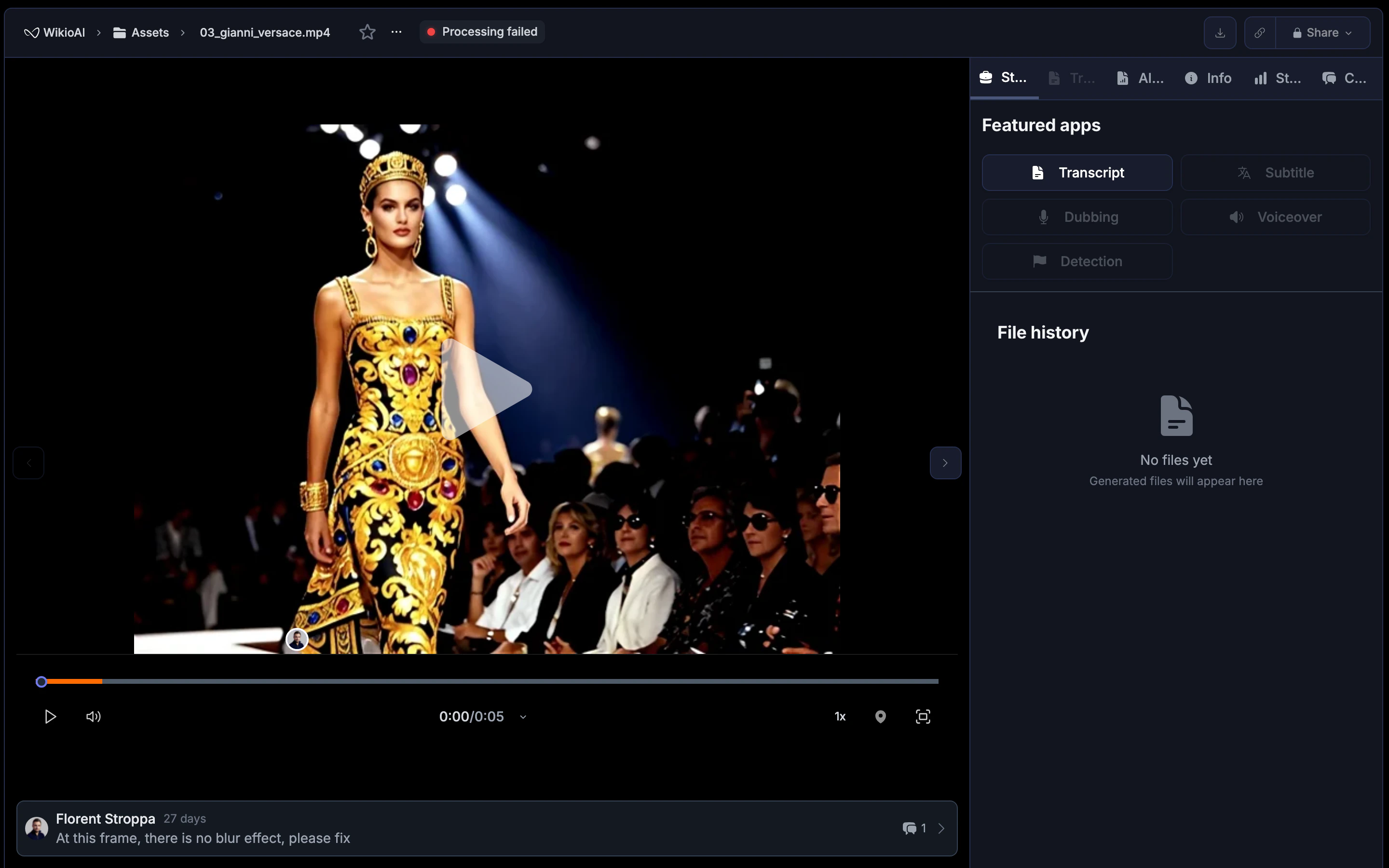 ## How dubbing works
1. Wikio transcribes and translates the original speech.
2. AI voices generate the dubbed audio in the target language.
3. The system adjusts pacing to match lip movements and scene timing.
4. You review, refine, and export the final dubbed video.
## Create a dubbed version
Open the asset you want to dub from your library or project.
Click **Workflows** and choose **Dub video**. Select the original language if not detected automatically.
Pick one or more languages for the dubbed output. Each language creates a separate audio track.
Choose from available AI voices. Options vary by language and include different genders and tones.
Wikio generates the dubbed audio. Once complete, preview each language track in the player.
Dubbing a full-length video can take several minutes depending on duration and number of languages. You'll receive a notification when processing finishes.
## Voice options
Wikio offers multiple AI voice profiles per language:
| Voice type | Description |
| ------------------ | ---------------------------------------------------------- |
| **Neutral** | Clear, professional tone suitable for most content |
| **Conversational** | Relaxed and natural, ideal for interviews and vlogs |
| **Formal** | Authoritative delivery for corporate or educational videos |
| **Energetic** | Upbeat pacing for marketing and promotional content |
Select the voice that matches your video's tone. You can assign different voices to different speakers if the original has multiple people.
## Edit dubbed audio
After generation, fine-tune the result:
* **Adjust segment timing**: Drag segment boundaries to better align with on-screen action.
* **Regenerate a segment**: If a phrase sounds unnatural, select it and click **Regenerate** to produce a new take.
* **Replace with custom audio**: Upload your own recording for a specific segment if you prefer a human voice for key lines.
* **Volume and mixing**: Balance the dubbed voice against background music or sound effects using the audio mixer.
## Multi-speaker handling
Wikio detects multiple speakers and assigns distinct voices to each. Review speaker labels in the timeline:
1. Click a segment to see its assigned speaker.
2. Change the speaker label or voice if the detection was incorrect.
3. Consistent labeling ensures each person sounds the same throughout the video.
Speaker detection works best when voices are clearly distinct. Overlapping speech may require manual correction.
## Export options
Export your dubbed video in several ways:
* **Embedded audio**: The dubbed track replaces the original audio in the exported file.
* **Separate audio file**: Download just the dubbed audio track (WAV or MP3) for use in external editors.
* **Multiple versions**: Export each language as a separate video file for distribution to different regions.
To export:
1. Open the **Export** menu.
2. Select **Dubbed version** and choose the language.
3. Pick your video format and quality settings.
4. Click **Export**.
## Sync and timing
Wikio automatically adjusts dubbed speech to fit the original timing. If adjustments are needed:
* Shorten or lengthen pauses between phrases.
* Allow slightly faster delivery for languages that require more syllables.
* Use the preview to check that speech doesn't overlap scene cuts.
For critical sync, enable **Lip-sync mode** during export. This applies additional processing to better match mouth movements, though it may slightly alter pacing.
## Best practices
* **Start with accurate subtitles**: Dubbing quality depends on good transcription and translation. Review subtitles before dubbing.
* **Match voice to content**: A mismatch between voice style and video tone can feel jarring. Preview before finalizing.
* **Keep background audio**: Music and sound effects should remain; only replace the spoken dialogue.
* **Test with native speakers**: If possible, have someone fluent in the target language review the dubbed output for natural phrasing.
## Troubleshooting
* **Audio sounds robotic**: Try a different voice profile or regenerate problem segments.
* **Timing is off**: Manually adjust segment boundaries or enable lip-sync mode.
* **Wrong speaker voice**: Check speaker labels and reassign voices where needed.
* **Missing audio in export**: Ensure you selected the dubbed track, not the original, in export settings.
## How dubbing works
1. Wikio transcribes and translates the original speech.
2. AI voices generate the dubbed audio in the target language.
3. The system adjusts pacing to match lip movements and scene timing.
4. You review, refine, and export the final dubbed video.
## Create a dubbed version
Open the asset you want to dub from your library or project.
Click **Workflows** and choose **Dub video**. Select the original language if not detected automatically.
Pick one or more languages for the dubbed output. Each language creates a separate audio track.
Choose from available AI voices. Options vary by language and include different genders and tones.
Wikio generates the dubbed audio. Once complete, preview each language track in the player.
Dubbing a full-length video can take several minutes depending on duration and number of languages. You'll receive a notification when processing finishes.
## Voice options
Wikio offers multiple AI voice profiles per language:
| Voice type | Description |
| ------------------ | ---------------------------------------------------------- |
| **Neutral** | Clear, professional tone suitable for most content |
| **Conversational** | Relaxed and natural, ideal for interviews and vlogs |
| **Formal** | Authoritative delivery for corporate or educational videos |
| **Energetic** | Upbeat pacing for marketing and promotional content |
Select the voice that matches your video's tone. You can assign different voices to different speakers if the original has multiple people.
## Edit dubbed audio
After generation, fine-tune the result:
* **Adjust segment timing**: Drag segment boundaries to better align with on-screen action.
* **Regenerate a segment**: If a phrase sounds unnatural, select it and click **Regenerate** to produce a new take.
* **Replace with custom audio**: Upload your own recording for a specific segment if you prefer a human voice for key lines.
* **Volume and mixing**: Balance the dubbed voice against background music or sound effects using the audio mixer.
## Multi-speaker handling
Wikio detects multiple speakers and assigns distinct voices to each. Review speaker labels in the timeline:
1. Click a segment to see its assigned speaker.
2. Change the speaker label or voice if the detection was incorrect.
3. Consistent labeling ensures each person sounds the same throughout the video.
Speaker detection works best when voices are clearly distinct. Overlapping speech may require manual correction.
## Export options
Export your dubbed video in several ways:
* **Embedded audio**: The dubbed track replaces the original audio in the exported file.
* **Separate audio file**: Download just the dubbed audio track (WAV or MP3) for use in external editors.
* **Multiple versions**: Export each language as a separate video file for distribution to different regions.
To export:
1. Open the **Export** menu.
2. Select **Dubbed version** and choose the language.
3. Pick your video format and quality settings.
4. Click **Export**.
## Sync and timing
Wikio automatically adjusts dubbed speech to fit the original timing. If adjustments are needed:
* Shorten or lengthen pauses between phrases.
* Allow slightly faster delivery for languages that require more syllables.
* Use the preview to check that speech doesn't overlap scene cuts.
For critical sync, enable **Lip-sync mode** during export. This applies additional processing to better match mouth movements, though it may slightly alter pacing.
## Best practices
* **Start with accurate subtitles**: Dubbing quality depends on good transcription and translation. Review subtitles before dubbing.
* **Match voice to content**: A mismatch between voice style and video tone can feel jarring. Preview before finalizing.
* **Keep background audio**: Music and sound effects should remain; only replace the spoken dialogue.
* **Test with native speakers**: If possible, have someone fluent in the target language review the dubbed output for natural phrasing.
## Troubleshooting
* **Audio sounds robotic**: Try a different voice profile or regenerate problem segments.
* **Timing is off**: Manually adjust segment boundaries or enable lip-sync mode.
* **Wrong speaker voice**: Check speaker labels and reassign voices where needed.
* **Missing audio in export**: Ensure you selected the dubbed track, not the original, in export settings.