

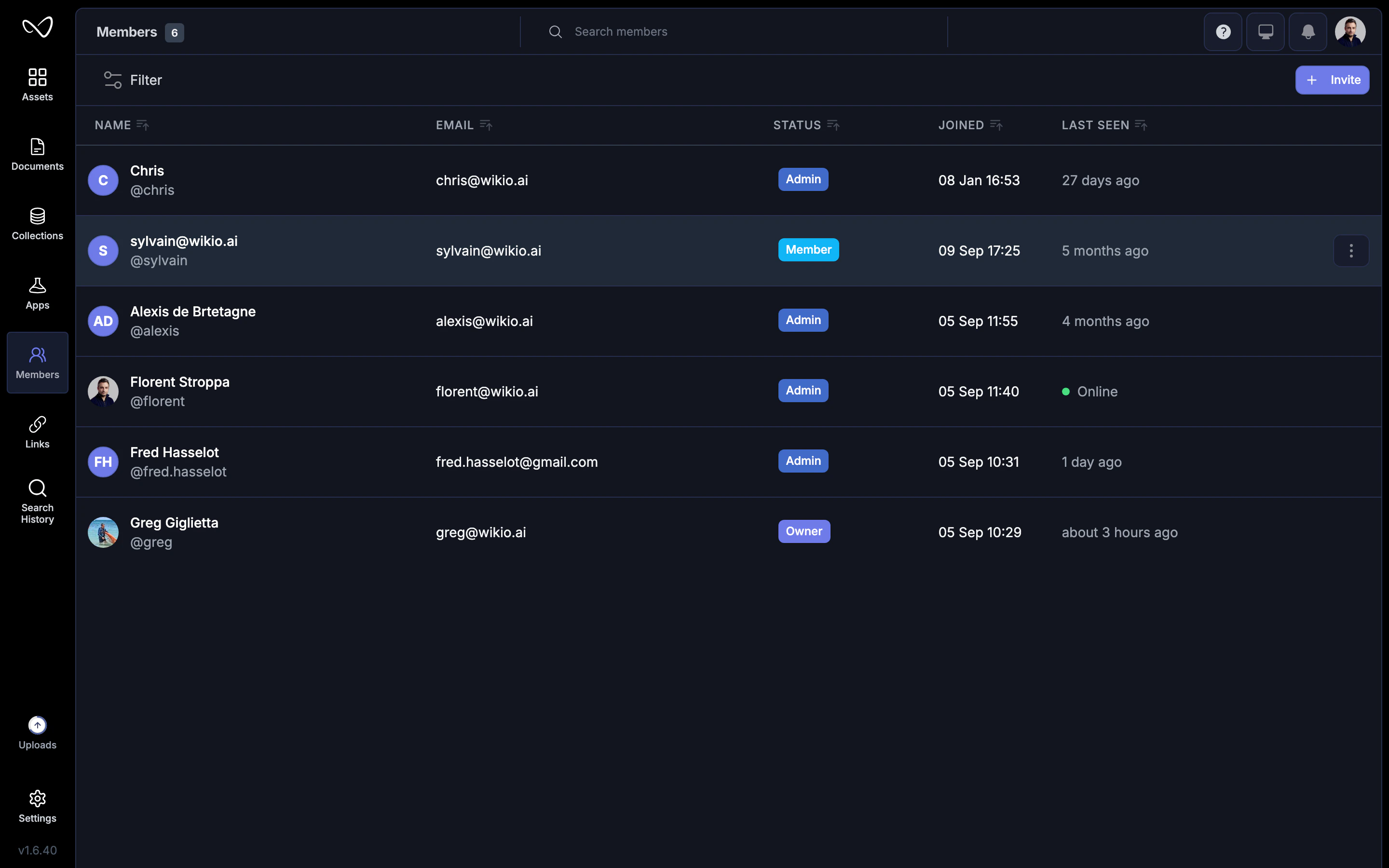
Why use teams
- Simplify permissions: Share projects with a team instead of listing every person.
- Organize by function: Create teams for editors, reviewers, clients, or departments.
- Scale collaboration: As your workspace grows, teams keep access manageable.
Create a team
1
Open workspace settings
Click your workspace name in the sidebar and select Settings.
2
Go to Teams
Navigate to the Teams tab.
3
Create a new team
Click New team, enter a name and optional description, then click Create.
Only Workspace Owners and Admins can create teams. Members can join existing teams but cannot create new ones.
Add members to a team
- Open the team from Settings > Teams.
- Click Add members.
- Search for existing workspace members or invite new people by email.
- Select a role for each person (see roles below).
- Click Add.
Team roles
Each team member has a role that controls what they can do within that team’s projects:
Roles are specific to each team. A person can be an Admin in one team and a Viewer in another.
Assign projects to a team
Projects can belong to a team so all members have access:- Create inside a team: Hover over the team in the sidebar and click New project. The project automatically inherits team permissions.
- Move an existing project: Drag a project into the team folder, or open the project settings and change its team assignment.
Moving a project to a team may grant access to people who didn’t have it before. Review team membership before moving sensitive projects.
Default team
Each workspace has a default team that includes all workspace members. Projects placed in the default team are visible to everyone. Use the default team for:- Company-wide announcements or shared resources.
- Templates that anyone can duplicate.
- Reference materials like brand guidelines.
Remove members
- Open the team settings.
- Find the member you want to remove.
- Click the menu icon and select Remove from team.
Delete a team
- Go to Settings > Teams.
- Select the team and click Delete team.
- Confirm the deletion.
Best practices
- Name teams clearly: Use descriptive names like “Marketing Editors” or “Client: Acme Corp” so members understand the scope.
- Limit team size: Smaller, focused teams are easier to manage than large, general-purpose ones.
- Use reviewers for clients: Give external stakeholders Reviewer access so they can comment without editing.
- Audit regularly: Periodically review team membership to remove people who no longer need access.