

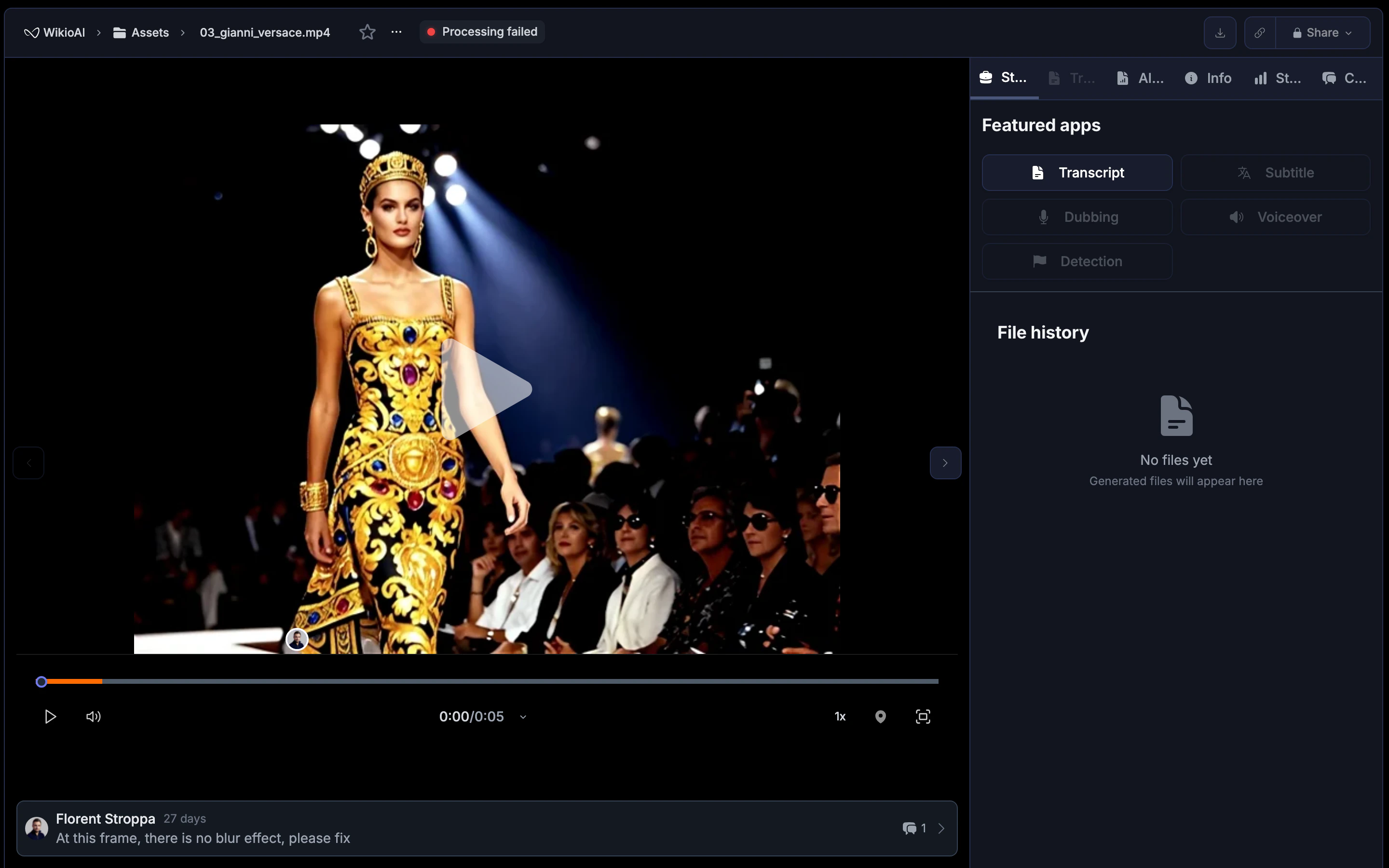
How dubbing works
- Wikio transcribes and translates the original speech.
- AI voices generate the dubbed audio in the target language.
- The system adjusts pacing to match lip movements and scene timing.
- You review, refine, and export the final dubbed video.
Create a dubbed version
1
Select your video
Open the asset you want to dub from your library or project.
2
Start the dubbing workflow
Click Workflows and choose Dub video. Select the original language if not detected automatically.
3
Choose target languages
Pick one or more languages for the dubbed output. Each language creates a separate audio track.
4
Select voice style
Choose from available AI voices. Options vary by language and include different genders and tones.
5
Process and review
Wikio generates the dubbed audio. Once complete, preview each language track in the player.
Voice options
Wikio offers multiple AI voice profiles per language:
Select the voice that matches your video’s tone. You can assign different voices to different speakers if the original has multiple people.
Edit dubbed audio
After generation, fine-tune the result:- Adjust segment timing: Drag segment boundaries to better align with on-screen action.
- Regenerate a segment: If a phrase sounds unnatural, select it and click Regenerate to produce a new take.
- Replace with custom audio: Upload your own recording for a specific segment if you prefer a human voice for key lines.
- Volume and mixing: Balance the dubbed voice against background music or sound effects using the audio mixer.
Multi-speaker handling
Wikio detects multiple speakers and assigns distinct voices to each. Review speaker labels in the timeline:- Click a segment to see its assigned speaker.
- Change the speaker label or voice if the detection was incorrect.
- Consistent labeling ensures each person sounds the same throughout the video.
Export options
Export your dubbed video in several ways:- Embedded audio: The dubbed track replaces the original audio in the exported file.
- Separate audio file: Download just the dubbed audio track (WAV or MP3) for use in external editors.
- Multiple versions: Export each language as a separate video file for distribution to different regions.
- Open the Export menu.
- Select Dubbed version and choose the language.
- Pick your video format and quality settings.
- Click Export.
Sync and timing
Wikio automatically adjusts dubbed speech to fit the original timing. If adjustments are needed:- Shorten or lengthen pauses between phrases.
- Allow slightly faster delivery for languages that require more syllables.
- Use the preview to check that speech doesn’t overlap scene cuts.
Best practices
- Start with accurate subtitles: Dubbing quality depends on good transcription and translation. Review subtitles before dubbing.
- Match voice to content: A mismatch between voice style and video tone can feel jarring. Preview before finalizing.
- Keep background audio: Music and sound effects should remain; only replace the spoken dialogue.
- Test with native speakers: If possible, have someone fluent in the target language review the dubbed output for natural phrasing.
Troubleshooting
- Audio sounds robotic: Try a different voice profile or regenerate problem segments.
- Timing is off: Manually adjust segment boundaries or enable lip-sync mode.
- Wrong speaker voice: Check speaker labels and reassign voices where needed.
- Missing audio in export: Ensure you selected the dubbed track, not the original, in export settings.